
How Your Android Phone Handles the Boring Stuff
Android AI apps can handle repetitive tasks like scanning, writing, transcription, and file search. Learn where they help, where they fail, and how to protect your privacy.
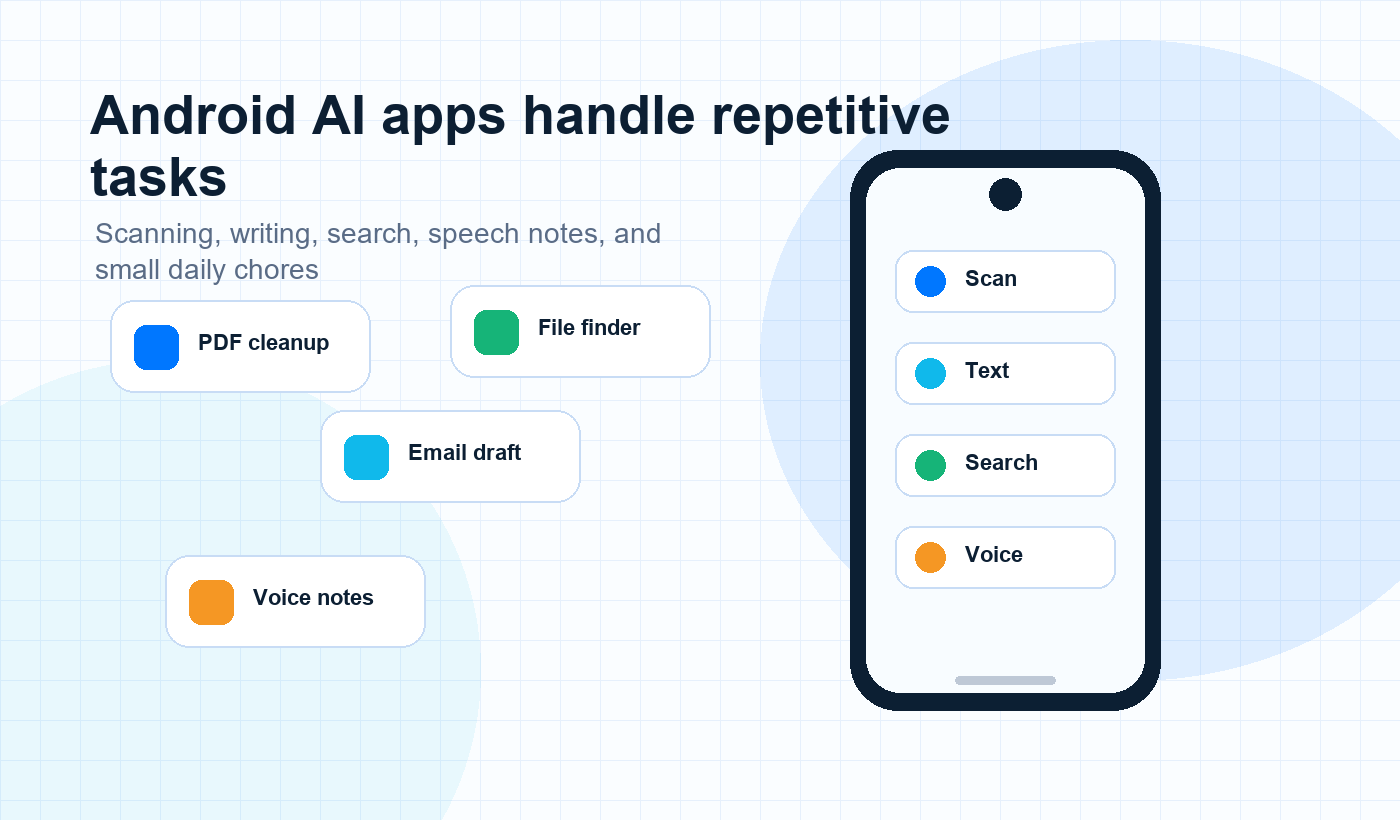
Artificial intelligence used to be locked inside research labs or buried in expensive software. Now, it is just another icon on your home screen. If you have an Android, you are likely already using it to plow through chores without a second thought. Whether you are scanning a receipt, fixing a blurry photo, or bashing out a quick email, these tools aren’t trying to replace you – they are just taking the busywork off your plate.
At Outflair Online Ltd, we build and write about practical mobile software for everyday users. You can also explore more Android app and productivity guides on our Blog.
What is an AI app, anyway?
Normal apps are basically checklists: do A, then B, then C. AI feels different because it is really just guessing based on patterns. It isn’t following a strict, hard-coded script. It looks at trends to figure out what you need in the moment.
Most people use these tricks to:
- Clean up a scan so it is actually readable.
- Wipe a messy background out of a photo.
- Draft or shrink a block of text.
- Turn spoken thoughts into notes.
- Find a file even if you have forgotten what you named it.
How it helps your day
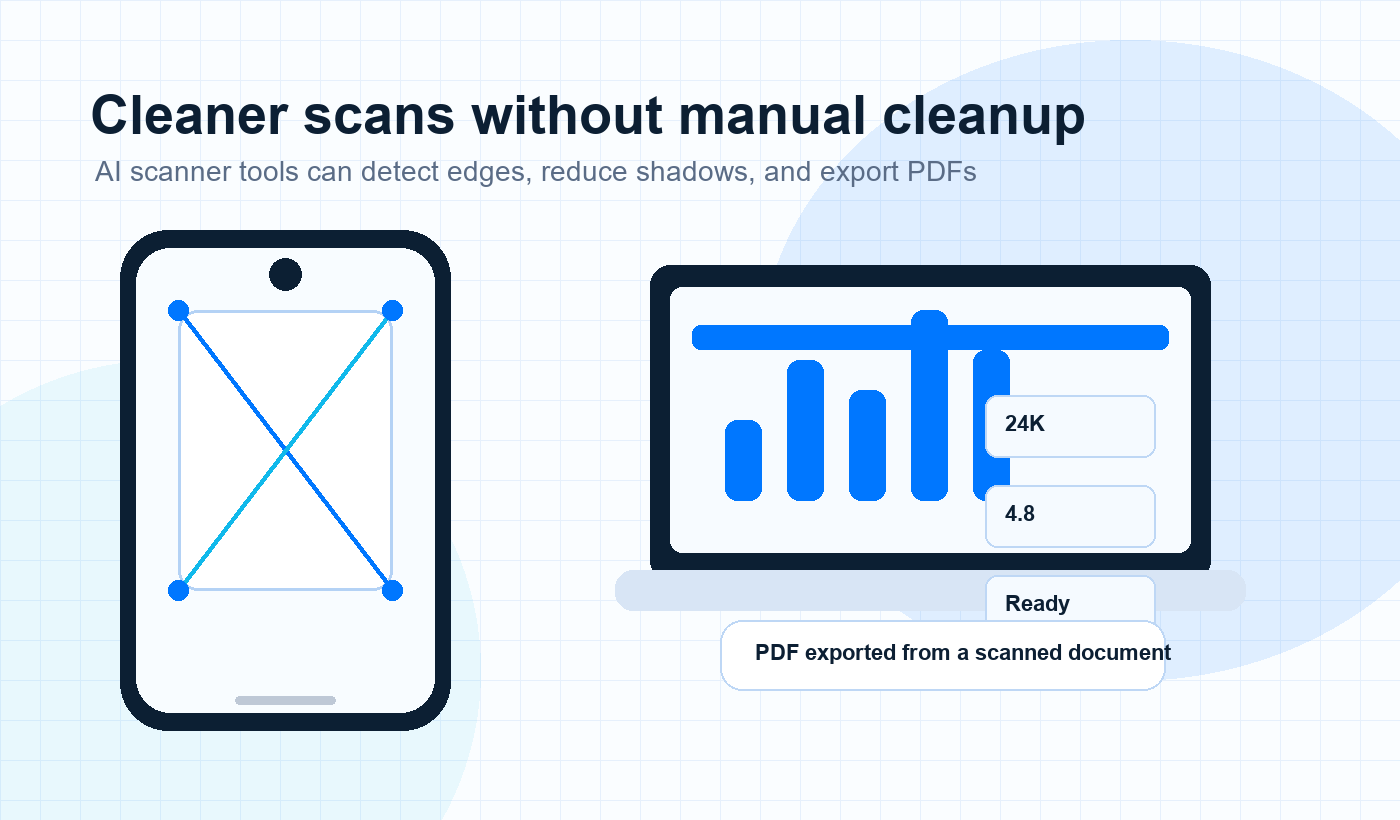
Scanning: Remember struggling with corners or bad lighting on a crooked page? AI scanners fix that. They find the edges, kill the shadows, and spit out a clean PDF instead of a smudge-covered mess. If you use a document scanner app, check whether it has a clear privacy page, like the Deep Scanner Privacy Policy.
Getting text off the page: You can snap a photo of a lecture note or a receipt, and the app turns it into editable text. It saves you from re-typing the whole thing.
Fixing your writing: Almost every note-taking or email app has a built-in assistant now. They are fine for checking grammar or turning a rambling draft into a few bullet points. But remember – you are the human in charge. These tools guess wrong or get the tone completely off, so double-check every word before hitting send.
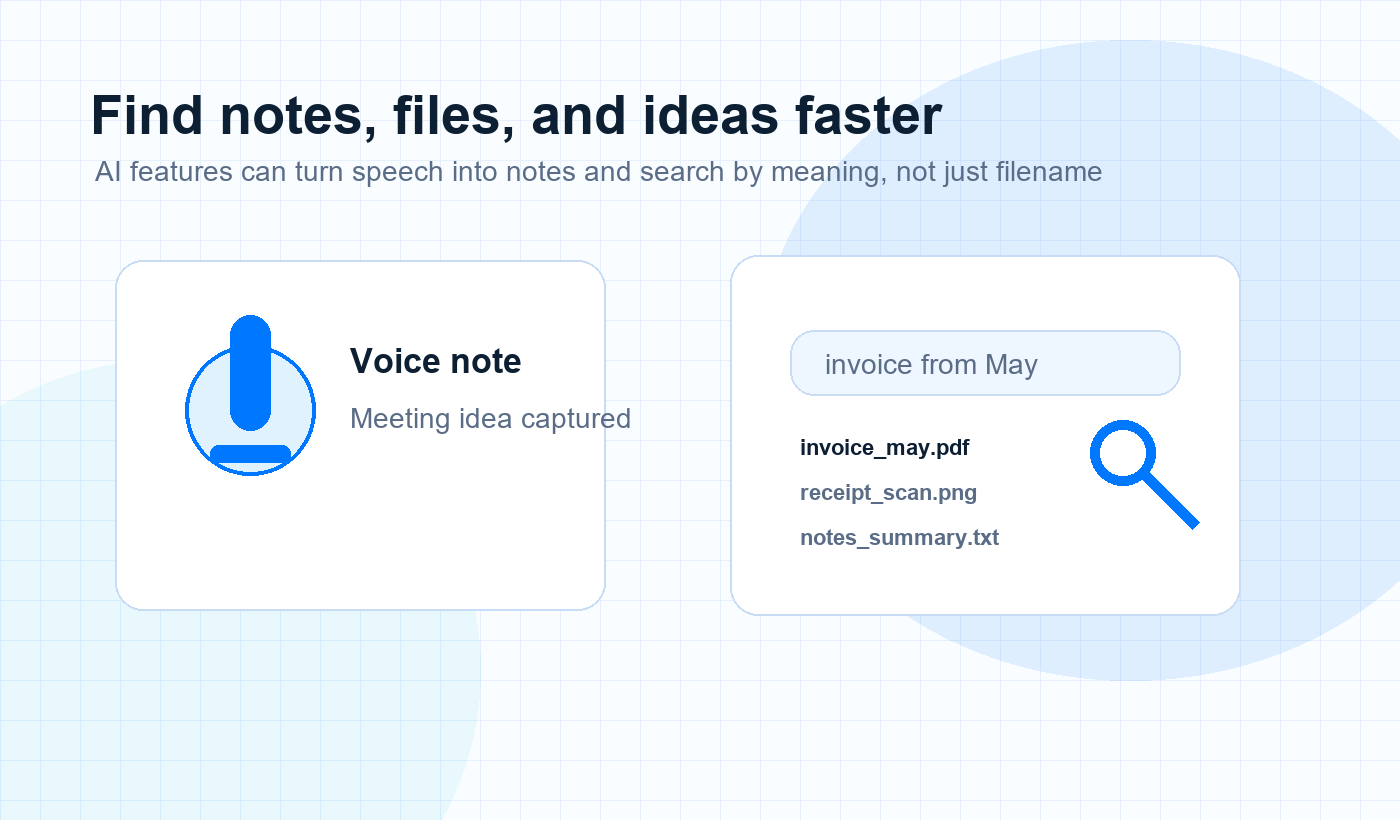
Talking instead of typing: Sometimes your brain moves faster than your thumbs. Speech-to-text is finally good enough to use when you are in a rush. It is an easy way to trap a fleeting idea before it vanishes.
Finding what you lost: Old searches required exact file names. Now, it is about what is inside the file. If you search for that invoice from May, a decent app will dig through your pile of documents and pull up the right one.
A note on privacy
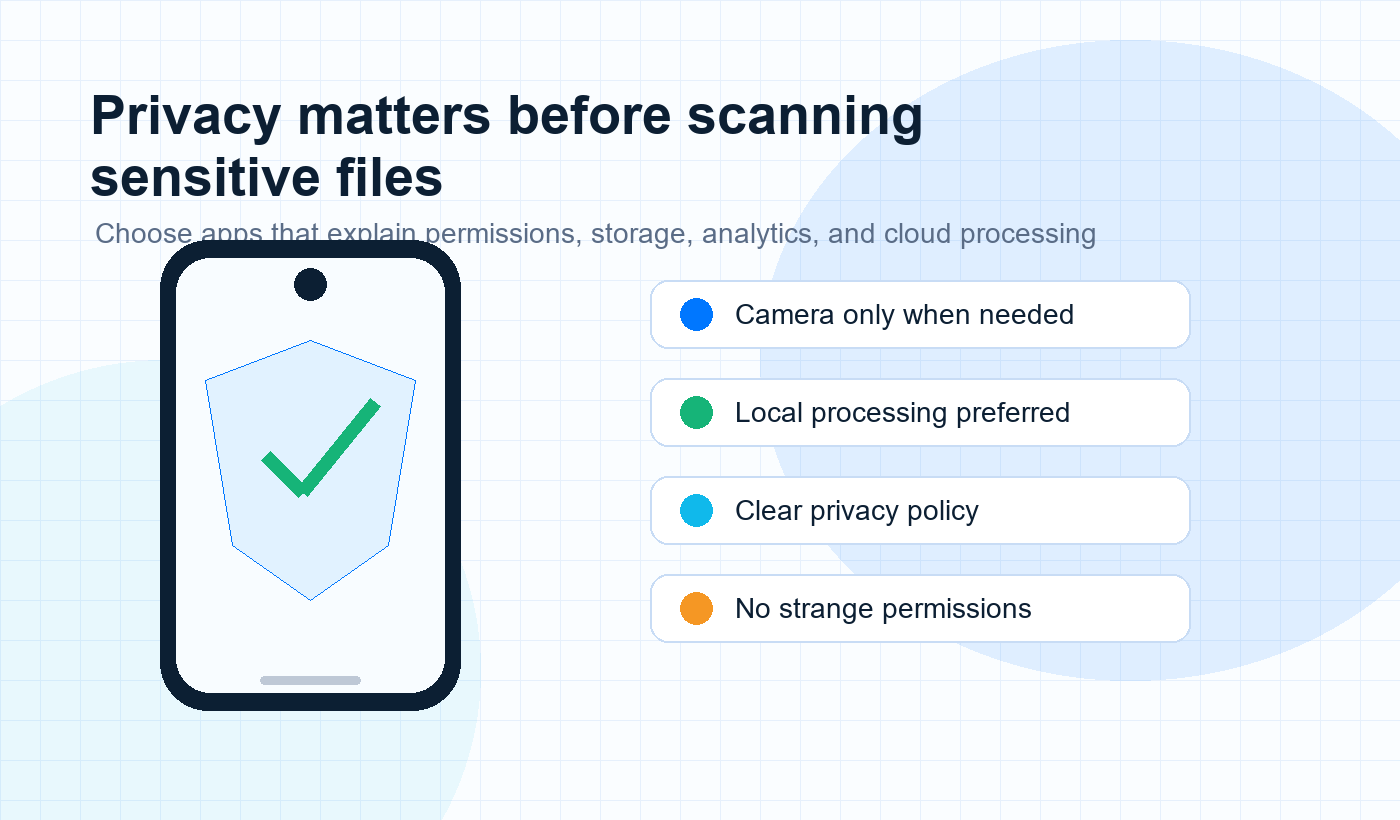
Nobody likes talking about this, but you should. Before you let an app scan tax documents or sensitive notes, look into how it handles the data. Does it keep everything on your phone? That is what you want. Does it fire everything off to a cloud for analysis? Be careful. If an app asks for access to your contacts or photos for no clear reason, just delete it.
A trustworthy software company should explain data usage clearly in its Privacy Policy and basic service rules in its Terms of Service. For utility apps, a product-specific policy can also help users understand exactly what each app collects. For example, the Toolsixo Privacy Policy explains the privacy approach for that app.
Choosing an app that isn’t junk
The store is full of AI-branded fluff. When you pick a tool, keep this in mind:
- Is it fast? If the setup is clunky, the AI isn’t actually saving you any time.
- Does it work offline? Good features run directly on your phone. This keeps your data private and works even when you don’t have a signal.
- Are they honest? If an app can’t give you a straight answer about how it handles your data, go find something else.
Watch out for common traps
Don’t treat AI like an expert. Treat it like a quick assistant that still needs review. Always check the output yourself. Never upload sensitive info thinking it is automatically safe, and don’t install five different apps that do the same thing; you will just end up with more digital clutter.
AI makes a decent assistant, but it is a bad replacement for your own judgment. Use it to handle the repetitive, mind-numbing stuff. Pick the right tools, keep an eye on your privacy, and you will walk away with a little more time in your day.
A simple way to use AI without clutter
The best Android AI setup is usually simple. You do not need a separate app for every tiny job. A good document scanner, a reliable notes app, a file manager or utility app, and one writing helper can cover most daily tasks. When too many apps overlap, you spend more time switching between tools than actually finishing the work.
Start with the task you repeat most often. If paperwork is your problem, choose a scanner that can crop, enhance, export PDF files, and explain camera permission clearly. If writing is the problem, use a tool that helps summarize or clean up drafts without changing your meaning. If files are the problem, choose an app that keeps documents organized and searchable.
It also helps to review your apps every few weeks. Remove tools you no longer use, clear old cache files, and check whether any app has permissions it does not need anymore. Small maintenance keeps your phone faster, cleaner, and easier to trust.
Quick checklist before installing an AI app
Before installing a new AI app on Android, take one minute to check the basics:
- Read the app description and confirm it clearly explains what the app does.
- Check the requested permissions and ask whether each one makes sense.
- Look for a working privacy policy from the developer.
- Prefer apps that explain whether processing happens on-device or in the cloud.
- Check recent updates, reviews, and whether the developer provides support.
- Avoid apps that promise unrealistic results or hide basic company information.
This does not guarantee a perfect app, but it filters out a lot of low-effort software. The goal is not to fear AI tools. The goal is to choose apps that are useful, transparent, and respectful of your data.
FAQ
Are Android AI apps safe to use?
Many Android AI apps are safe when they request only the permissions they need, explain how data is processed, and keep sensitive work on the device where possible. Always review the app permissions and privacy policy before scanning documents, importing files, or uploading personal information.
Do AI scanner apps upload my documents?
Some scanner apps process documents locally, while others may upload files for cloud features such as backup, OCR, sync, or enhancement. Before scanning private documents, check the app privacy policy and settings so you know whether files remain on your phone or are sent to external services.
Can AI productivity apps work offline?
Some features can work offline, especially basic scanning, edge detection, file cleanup, and speech tools stored on the device. More advanced AI writing, OCR, translation, or cloud search features may require an internet connection.
Should I trust AI writing suggestions?
Use AI writing suggestions as a first draft, not the final answer. AI can miss context, create awkward tone, or produce incorrect details. Read everything carefully before sending emails, publishing text, or using AI-generated content for important work.
Where can I ask Outflair Online Ltd about app privacy?
You can contact Outflair Online Ltd through the Contact section of the website for questions about apps, privacy, support, or company information.